 TradeCalmly
Guide · XM
Create a Passview at XM
The Passview (read-only / investor password) of an MT5 account at XM is set in the Members Area, XM’s account area. Four steps, about 3 minutes, then connect it in TradeCalmly.
- You need
- The email and password of your XM Members Area.
- Where to sign in
- In XM’s official client area, where you opened the account. The broker’s main site: xm.com
TradeCalmly is not affiliated with any broker and recommends none. Broker names are here only so you recognise the screens you will see.
Steps
-
Step 1
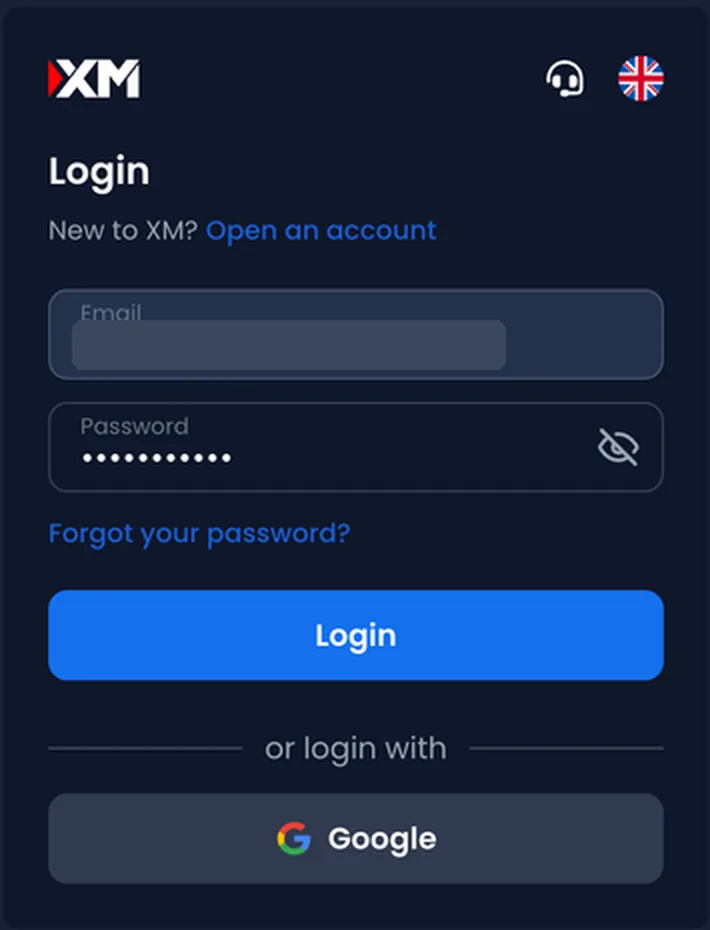
Sign in to the Members Area
Sign in with your email and Members Area password. This is the password of the account area, not of MT5.
-
Step 2
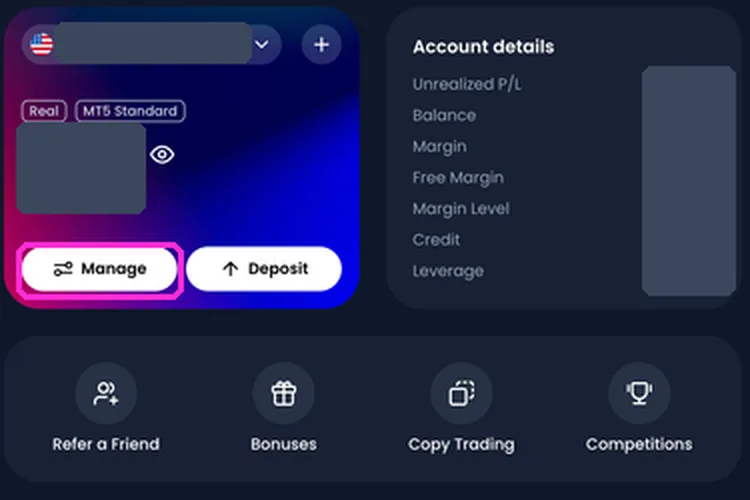
Press “Manage”
On the card of the MT5 account you want to connect, press “Manage”. With several accounts, pick the right one at the top of the card first.
-
Step 3
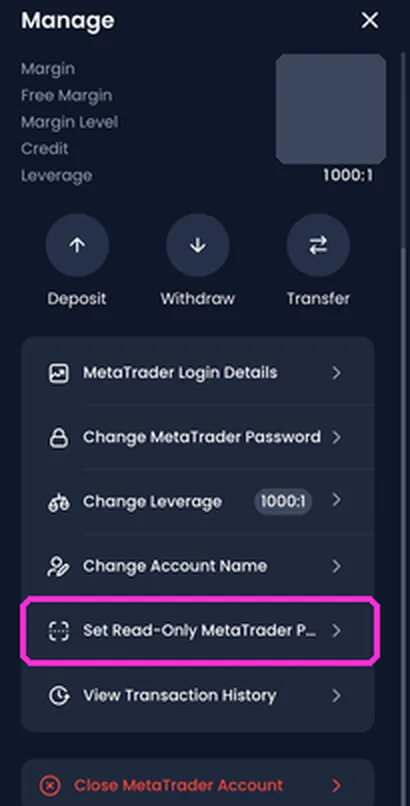
Choose “Set Read-Only MetaTrader Password”
In the Manage panel, press “Set Read-Only MetaTrader Password”.
-
Step 4
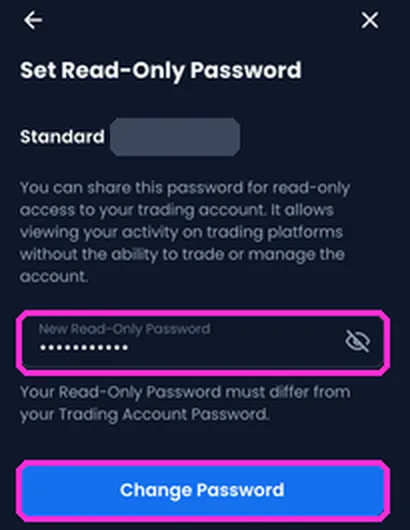
Set the Passview
Type a new Passview, different from your trading password, then press “Change Password”.
Screenshots from November 2026. A broker's pages change over time, so a button may read slightly differently.
Connect in TradeCalmly
- Open TradeCalmlyThe web app at my.tradecalmly.com, or the app on your phone.
- Open Connect MT5 accountPick your account’s broker and server.
- Enter the login number and the PassviewThen press Connect. The app loads 90 days of history and keeps itself in sync from then on.
Why it is safe
A Passview is read-only: TradeCalmly can never open or close a trade, and cannot withdraw money. Disconnect and the Passview is deleted at once. See also the privacy policy.
Where to find the server’s name
In your broker’s client area (next to the account number), in the account opening email, or in the MT5 app. Pick it letter for letter: Real and Demo are different servers.